Metronome Tutorials
Metronome Guide
Use Metronome when you need a steady tempo for practice, a custom rhythm click for performance, or MIDI sync with other music apps and devices.
Quick Start
- Open Metronome.
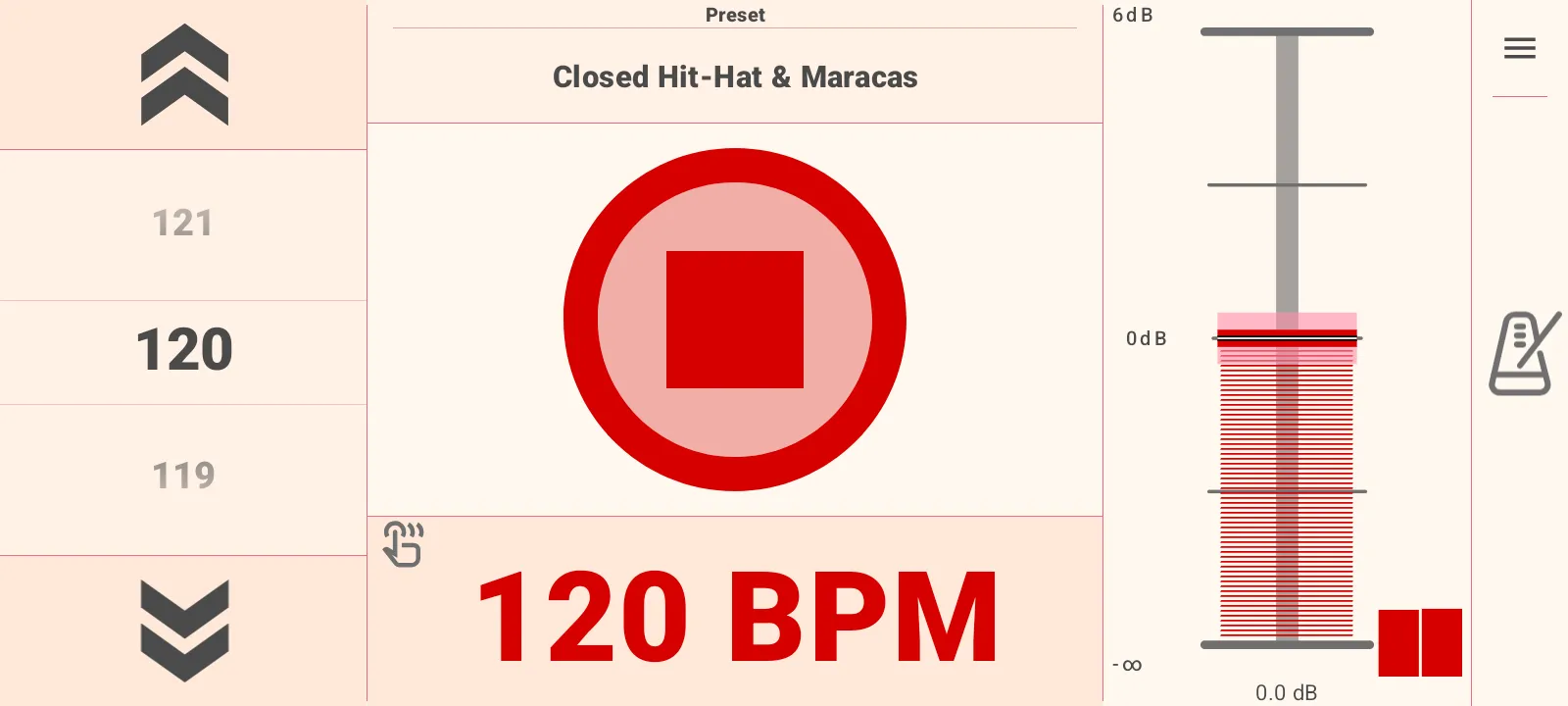
- Set the tempo with the large BPM control on the left.
- Press the large center play button to start.
- Adjust volume with the vertical level control on the right.
- Press the center stop button when finished.
Set The Tempo
The main screen keeps tempo controls visible while you play.
- Use the left BPM picker to increase or decrease the tempo.
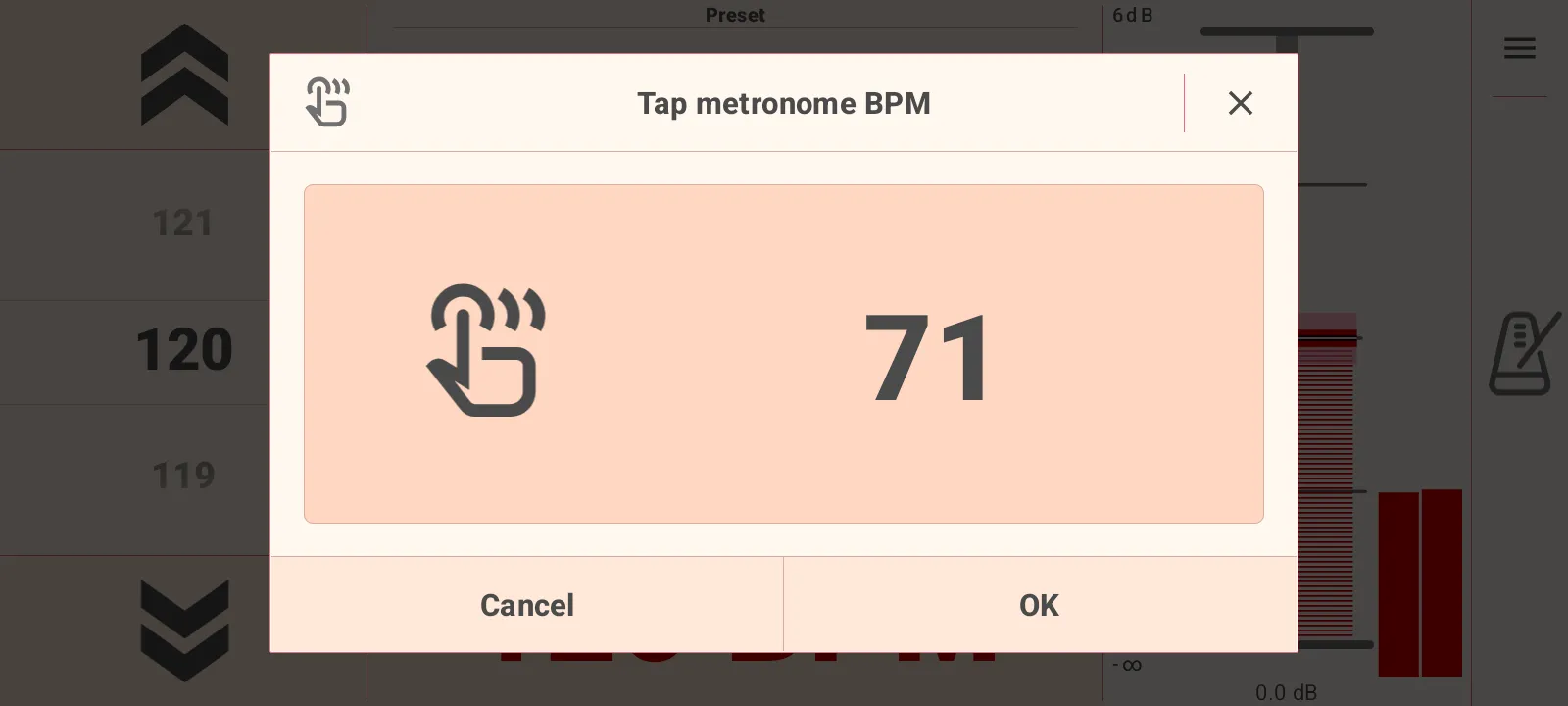
- Tap the large BPM readout under the play button to open Tap BPM.
- Tempo changes can be made while playback is running.
Tap A BPM
Tap BPM is useful when you already hear the tempo in a song or rehearsal.
- Tap the BPM number on the main screen.
- Tap the center of the dialog along with the beat.
- After enough taps, the app shows the calculated BPM.
- Press OK to apply it, or Cancel to keep the old tempo.
If you pause too long between taps, the app starts measuring again.
Control Playback And Volume
The center button starts and stops the metronome. While playing, the button changes to the stop state so it is easy to find on stage or during practice.
Use the right-side level control to set the metronome volume. The level control shows output feedback and the current dB value. If you need to stop sound immediately, open the side panel and use Audio Panic.
Choose A Rhythm Preset
Presets let the metronome play musical click patterns instead of only a plain beat.
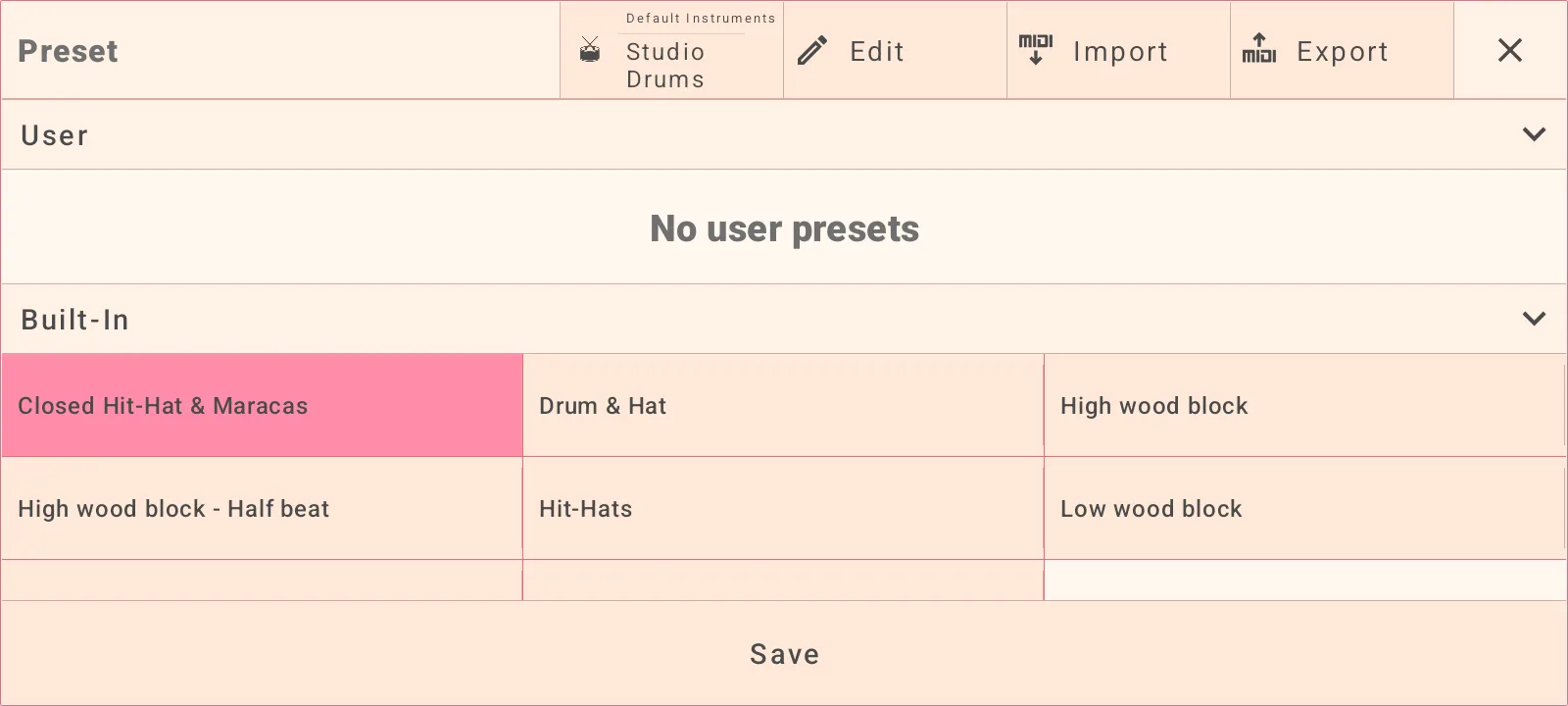
- Open the preset area from the main screen.
- Browse Built-In presets or your saved User presets.
- Select a preset such as Closed Hit-Hat & Maracas, Drum & Hat, Hit-Hats, wood block, Square & Metronome, or Metronome Click.
- Press Save when you want to keep your edited version as a user preset.
Select Instruments And SoundFonts
The preset toolbar includes an instrument selector. Use it to choose the sound used by the current rhythm.
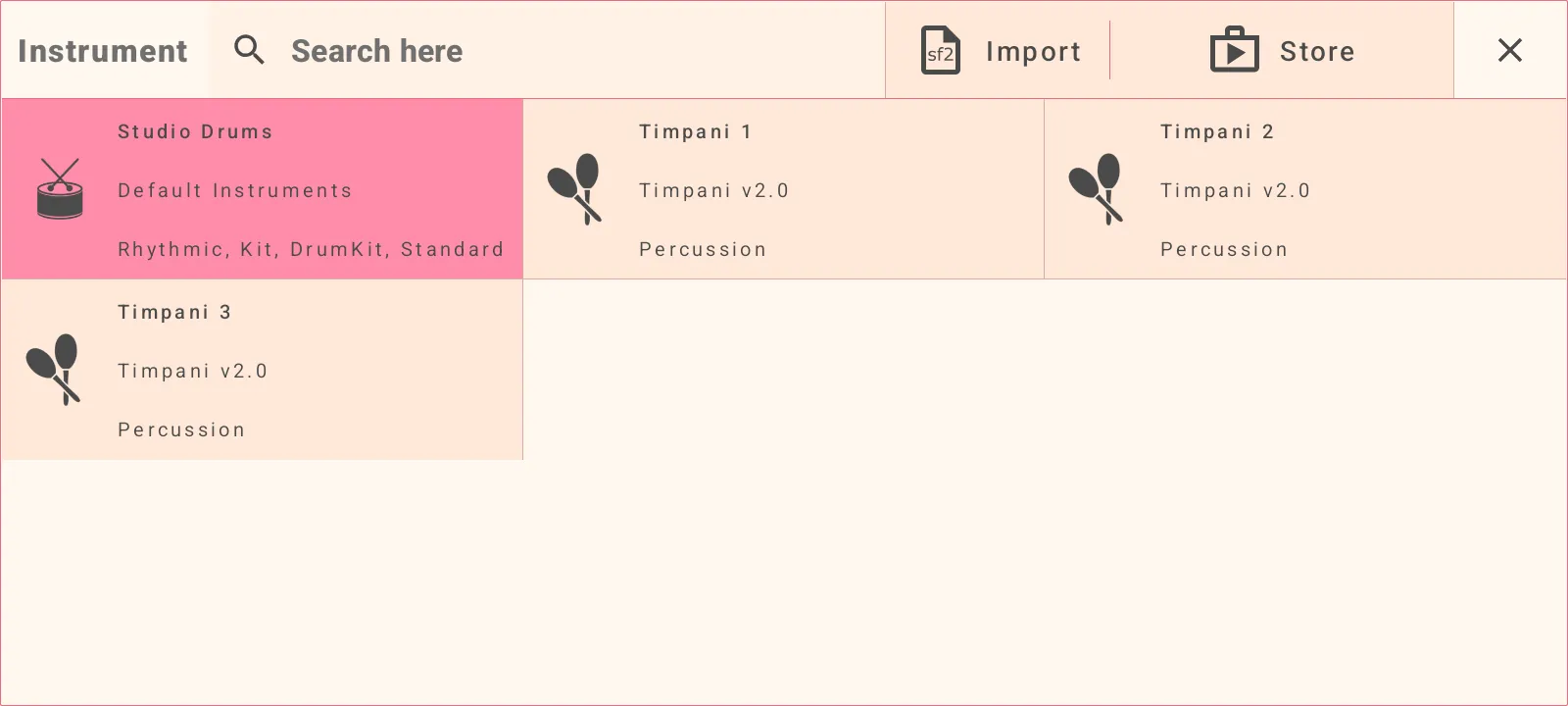
- Studio Drums is available from the default instruments.
- Use search to find instruments faster.
- Import SoundFont files when you want custom sounds.
- Assign imported SoundFont instruments to a category before saving.
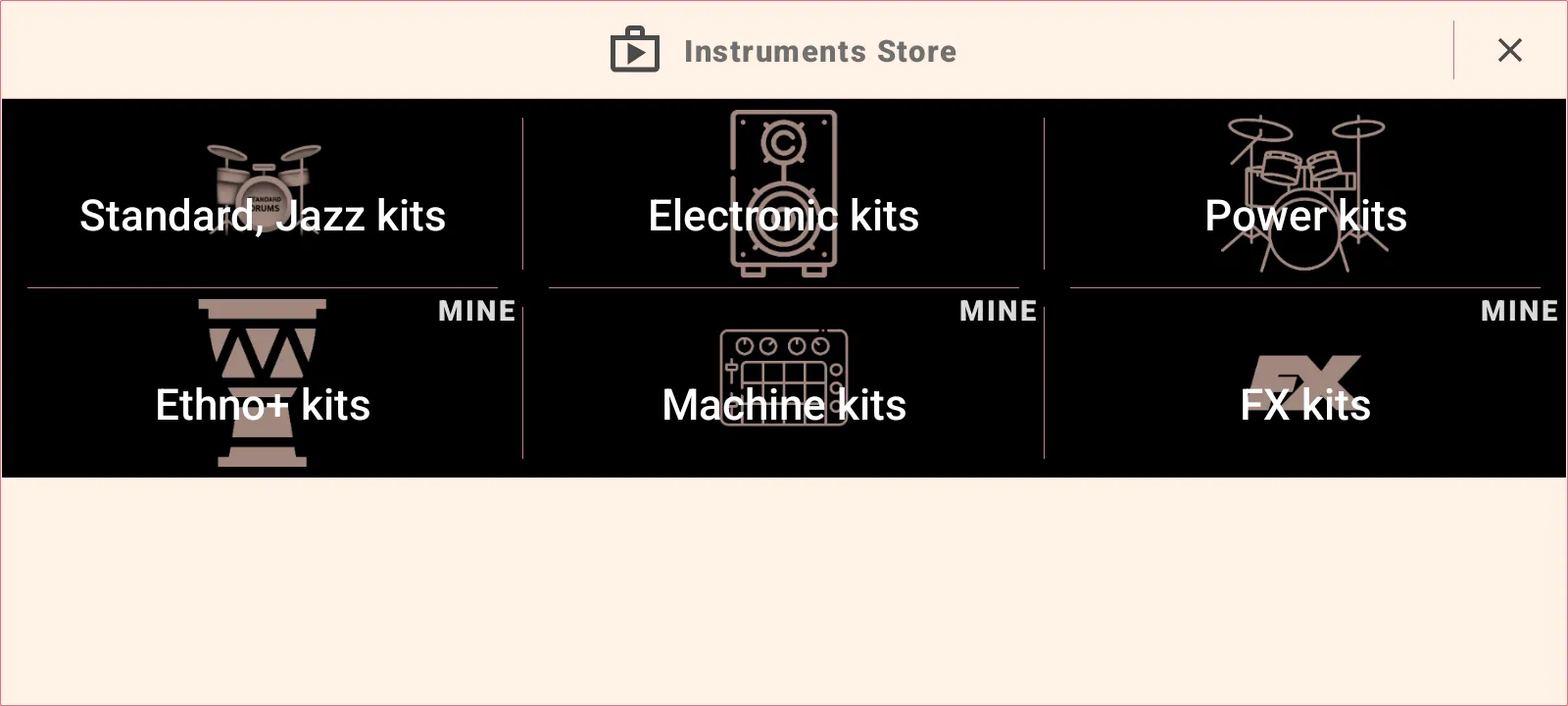
- Open the store to browse downloadable sound packs.
The store includes categories such as Standard/Jazz kits, Electronic kits, Power kits, Ethno kits, Machine kits, and FX kits.
Edit A Rhythm Sequence
Use the sequence editor when you want to change the actual notes in a rhythm preset.
- Open Preset.
- Choose the preset you want to change.
- Press Edit.
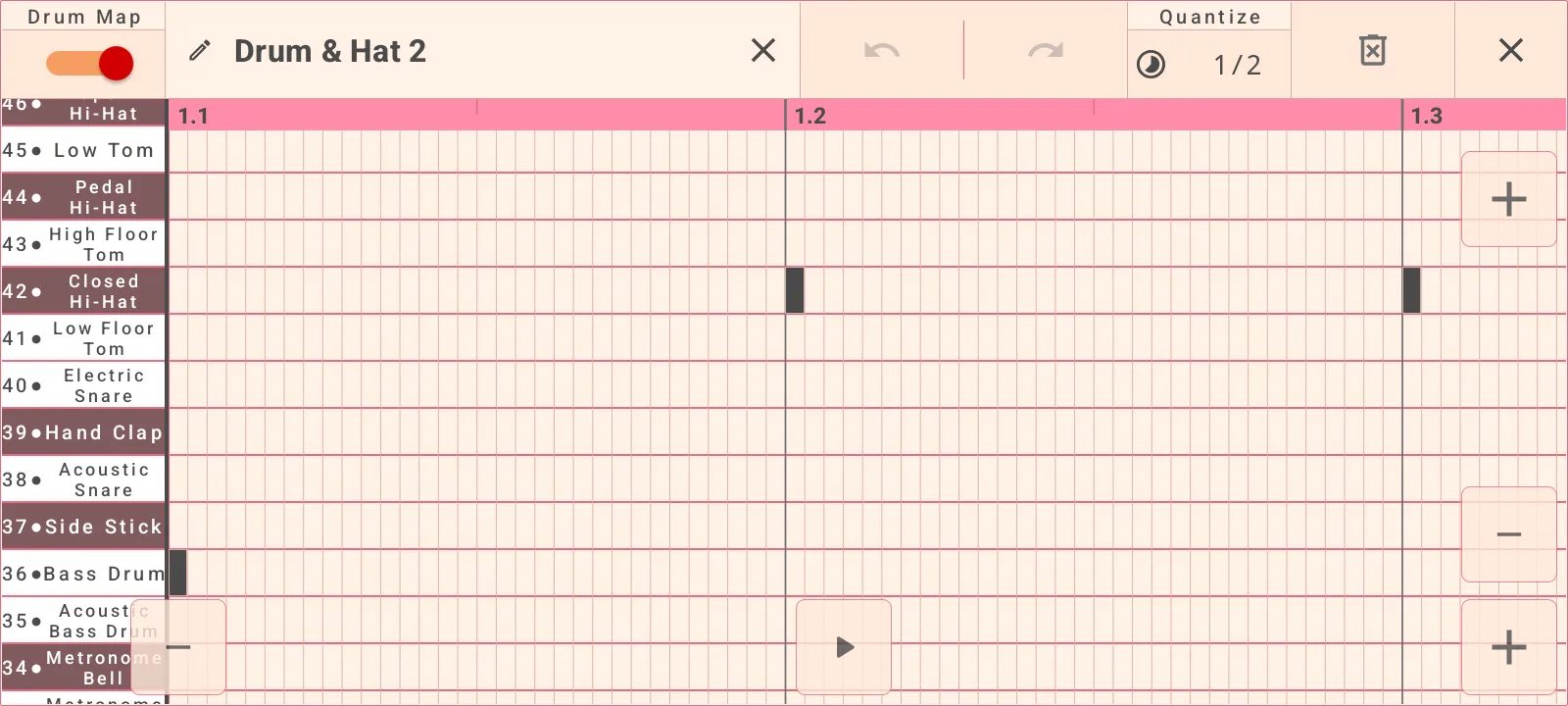
- Use the grid to select notes or lanes.
- Preview the edited rhythm.
- Save it as a user preset when it is ready.
The editor supports drum-map lanes and note-name lanes. Musical positions are shown on the grid, so you can place notes exactly where they should happen.
Edit Selected Notes
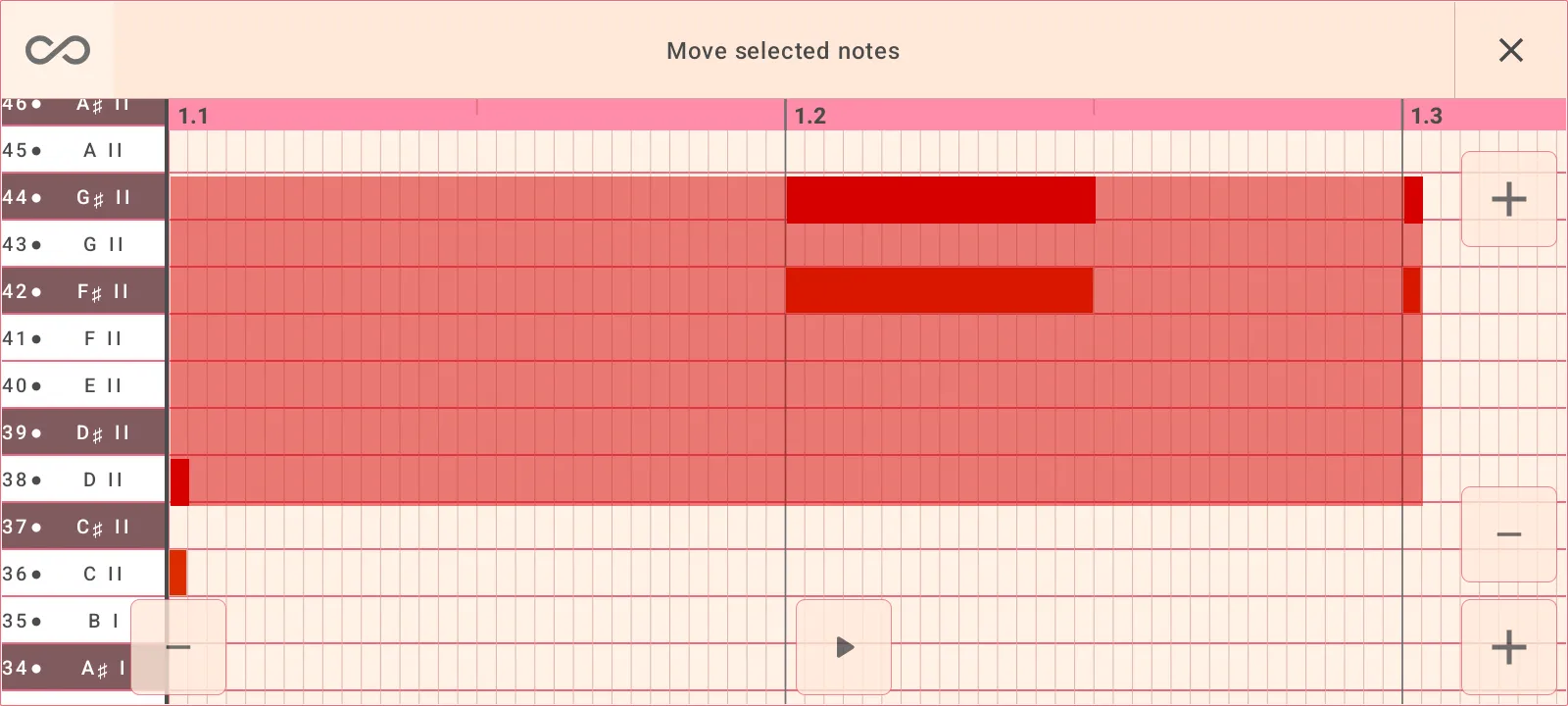
After selecting notes, use the edit actions:
- Copy to duplicate notes.
- Remove to delete notes.
- Move to shift selected notes.
- Resize to change note length.
- Loudness to change note volume.
- Quantize to snap notes to a timing grid.
Quantize values include 1/32, 1/16, 1/8, 1/4, 1/2, and 1 beat.
Sync With MIDI
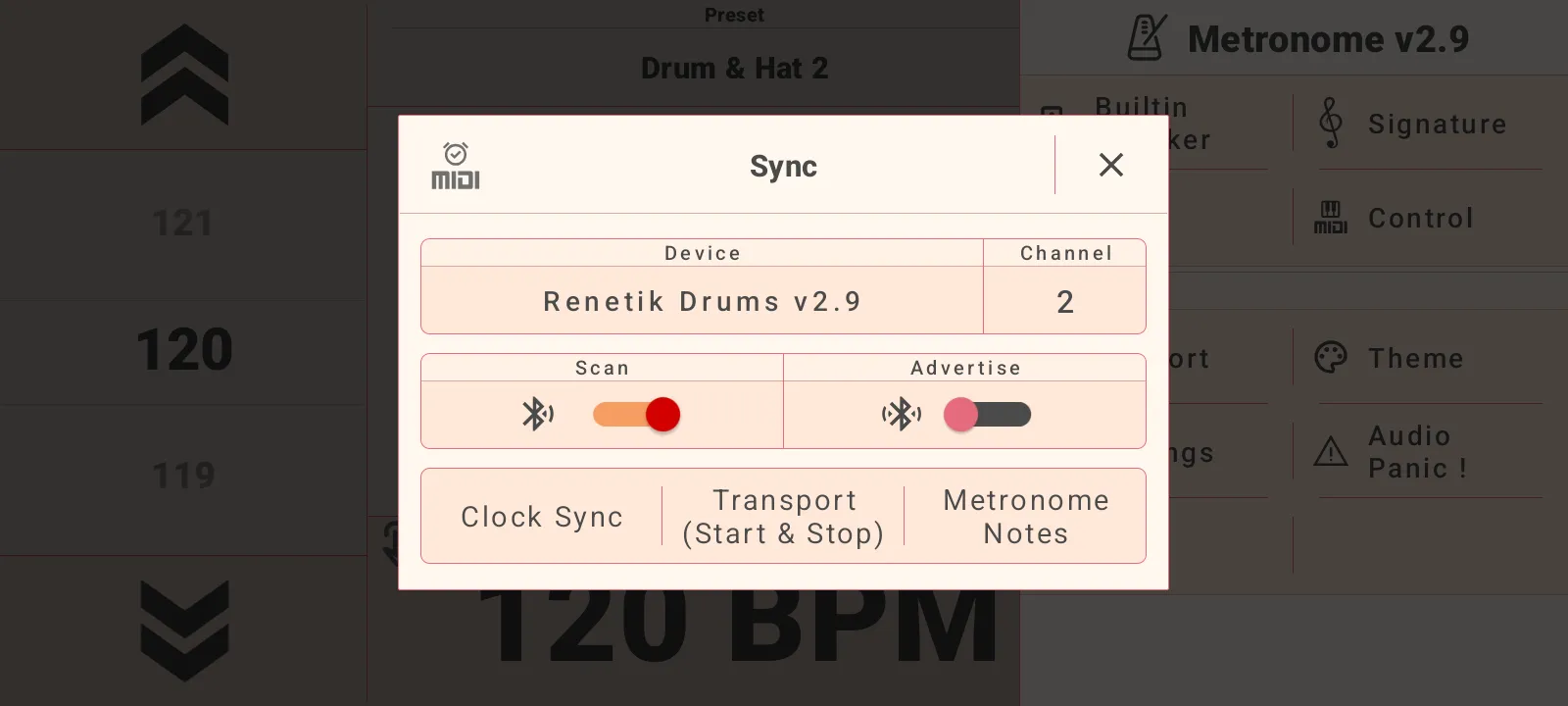
Use Sync when Metronome should drive another app or MIDI device.
- Open the side panel.
- Choose Sync.
- Select a MIDI output device.
- Select the MIDI channel.
- Enable the sync options you need.
Available sync options include Clock Sync, Transport Start & Stop, and Metronome Notes. Clock and transport can be enabled independently.
Control The App With MIDI
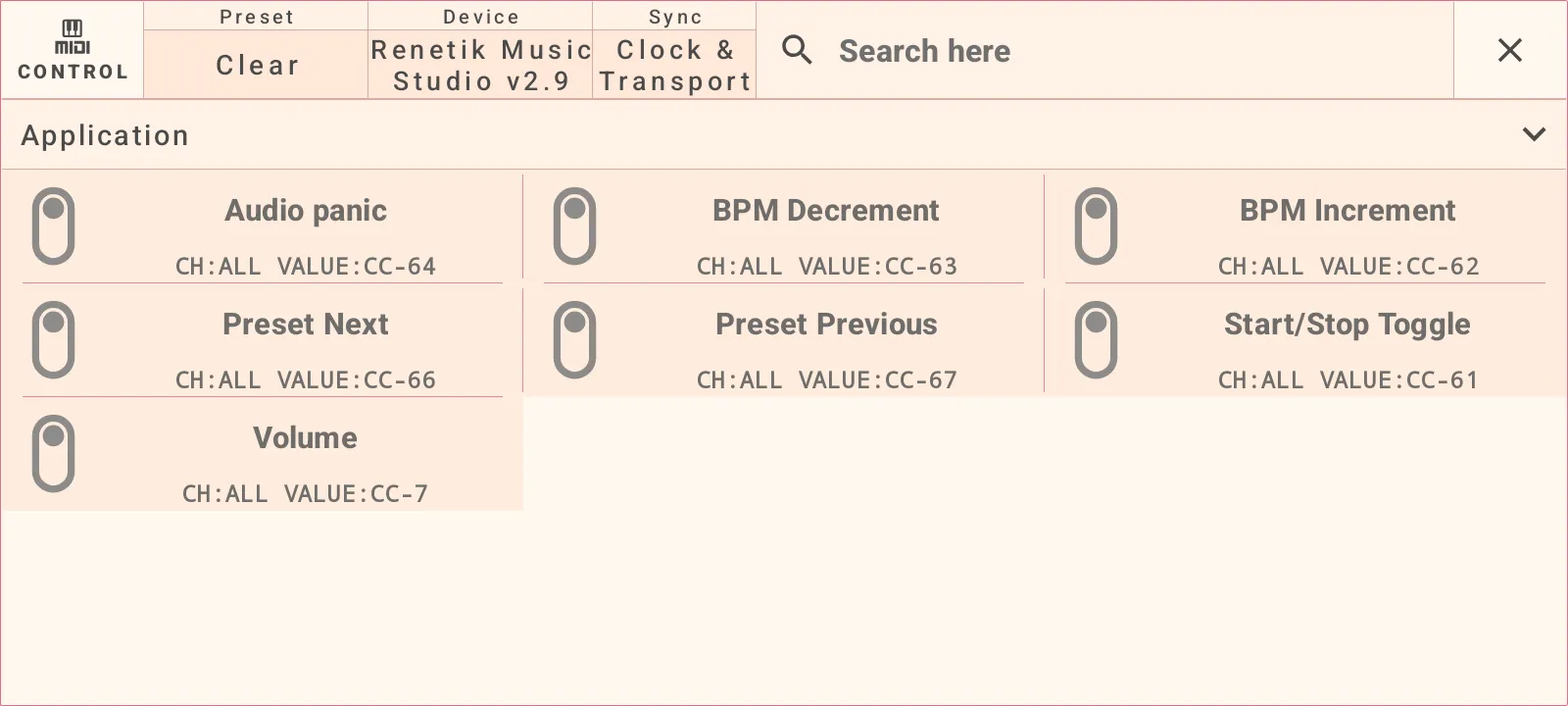
Use MIDI Control when an external device should control Metronome.
- Open the side panel.
- Choose Control.
- Select an input device.
- Choose a mapping.
- Enable it and set channel, type, and value.
- Use Learn to capture an incoming MIDI event.
- Use Test to verify the mapping.
Useful mappings include Audio panic, BPM Decrement, BPM Increment, Preset Next, Preset Previous, Start/Stop Toggle, and Volume.
Customize Appearance And Settings
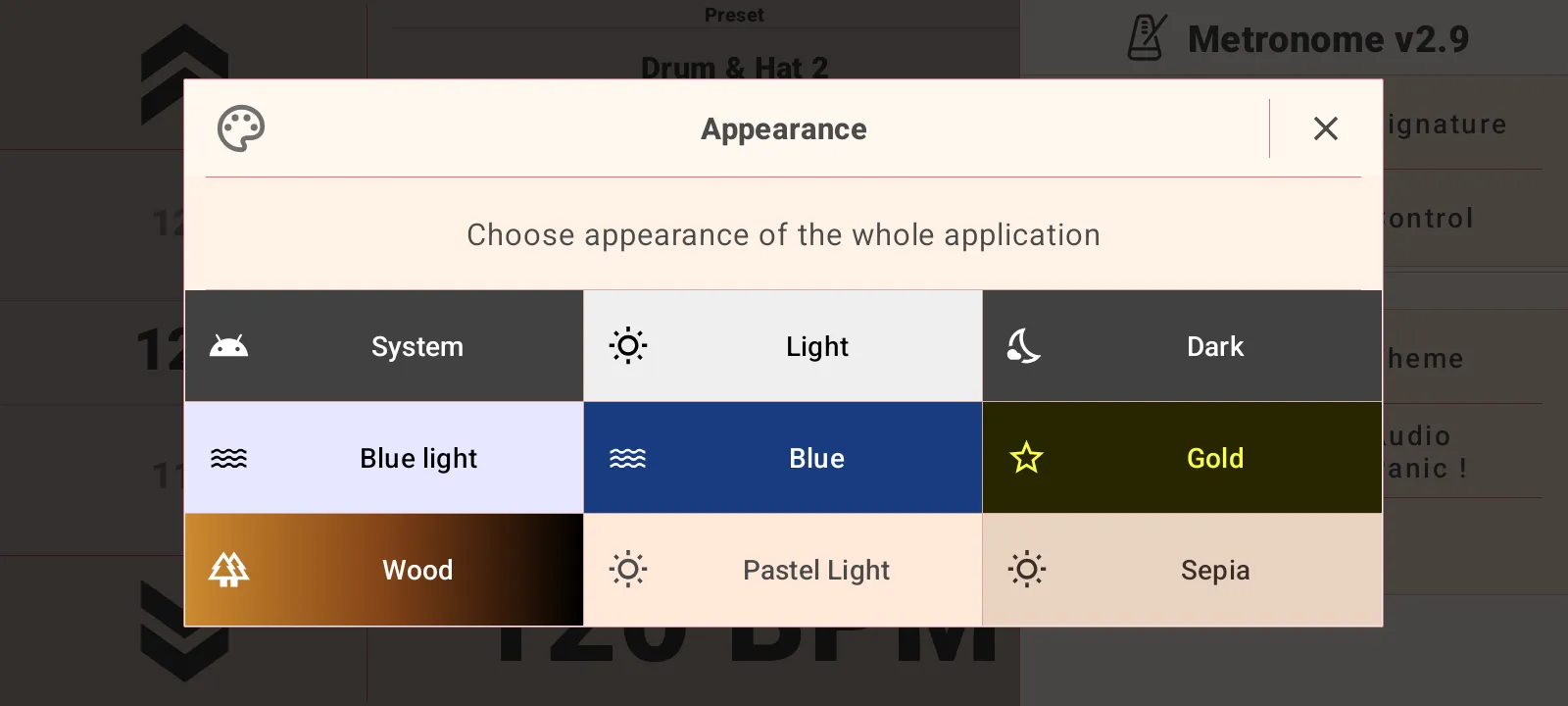
Open the side panel to change Theme or Settings.
Themes include System, Light, Dark, Blue light, Blue, Gold, Wood, Pastel Light, and Sepia.
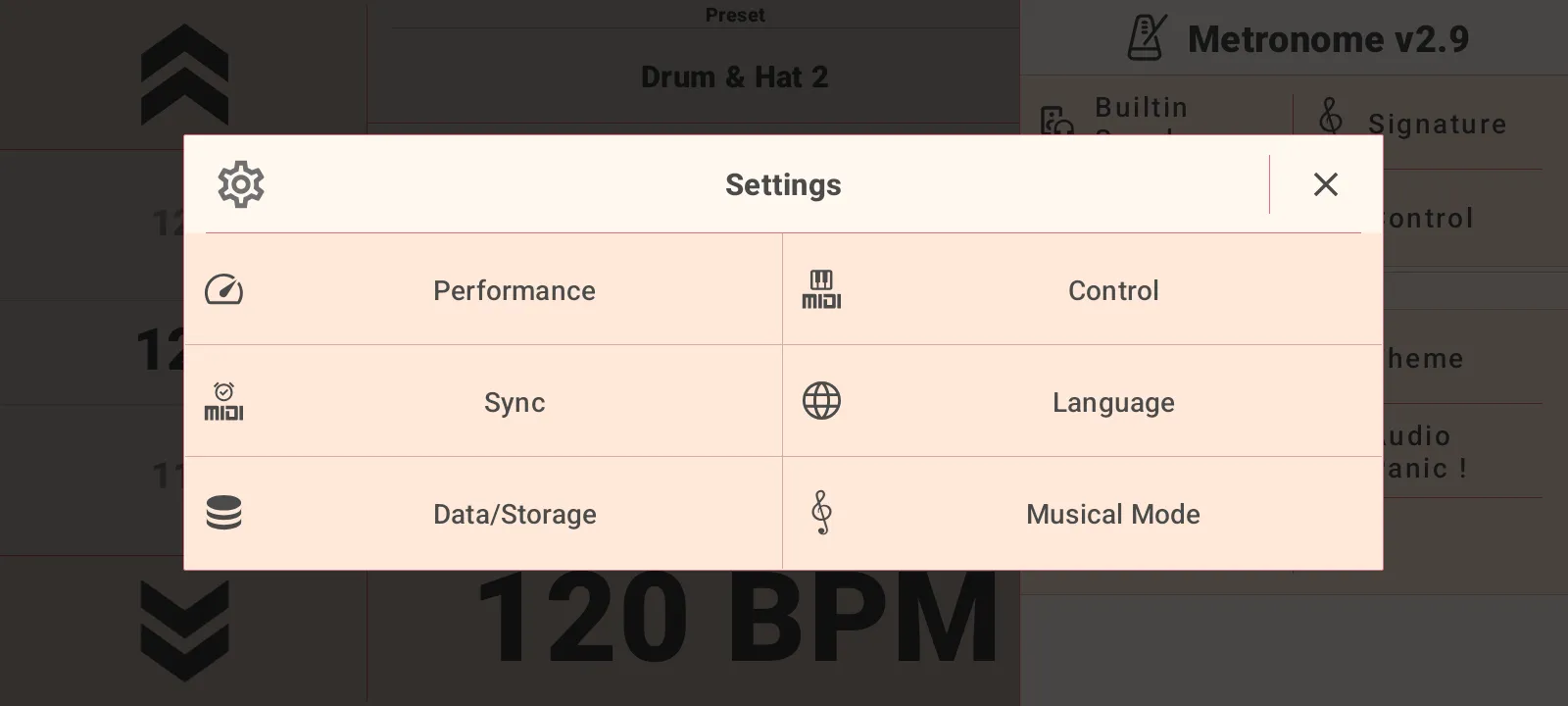
Settings include Performance, Control, Sync, Language, Data/Storage, and Musical Mode.
- Performance lets you choose tuning presets or manual audio output settings.
- Audio output settings include performance mode, buffer size, output sharing, and sample rate.
- Language changes the app language.
- Data/Storage exports or imports app data for backup.
- Musical Mode switches between Beats and Bars.
- Signature selects the number of beats per bar.
Use Playback Notification Controls
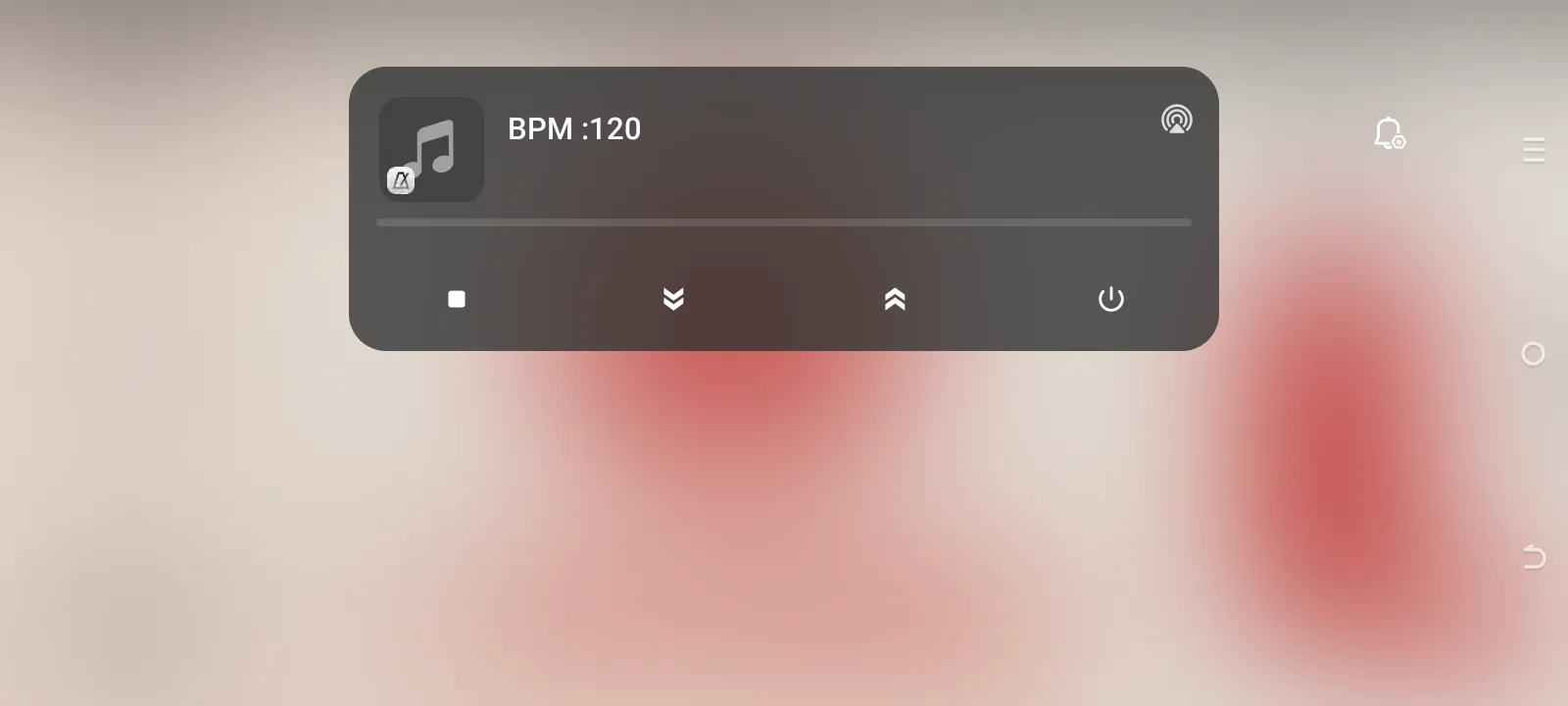
While playback is active, Android shows a media notification with the current BPM and quick controls. Use it to stop playback, move tempo down or up, return to the app, or exit.